A new bike and component Overview, a logbook you can scan, and easier ways around
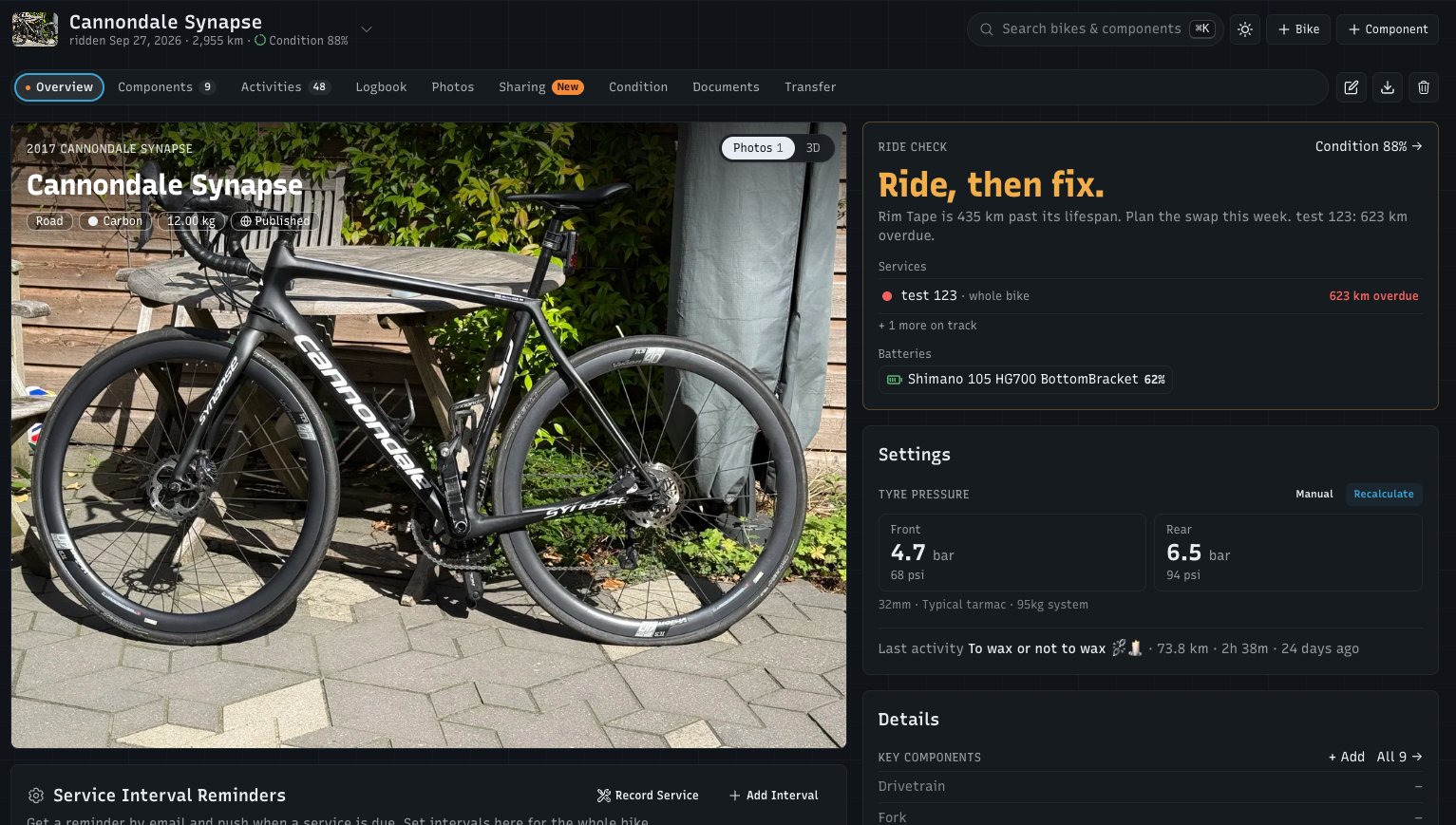
The bike and component pages are where you spend most of your time in WatchMy.bike, and they had grown one card at a time. I rebuilt them around the questions you open them with: can I ride it, what's due, what's it done. Moving between bikes and between components is one tap now, and the logbook reads like a logbook instead of a long column of cards.
The bike Overview
Ride check at the top answers "can I ride it?": Good to go., Ride, then fix. or Ride, then service., with the component closest to the end of its lifespan, the Services that are due (or how many are on track) and your Batteries, emptiest first. Condition NN% → takes you to the Condition tab
Settings keeps the bike's Tyre pressure (front and rear, in bar and psi) and Suspension (fork and shock) in one place, with Recalculate to open the calculator again. Suspension doesn't show on road and indoor bikes
The photo now carries the bike's name, year, make and model, with chips for type, frame material and weight. Switch between Photos and 3D in its corner. In 3D, your chain shows in its Chain Games design, and Components in 3D → opens the whole bike in the Components tab
Service Interval Reminders sit on the Overview, with Record Service and Add Interval in the card's corner
Usage: your activity totals, a chart of the last 26 weeks and your recent activities, with All N activities →
Details: Key components (drivetrain, fork, brakes, and shock, motor, wheels, tyres or trainer when the bike has them), then the bike itself with the purchase date up front, whether it's linked to Strava and whether it's public
Notes fold away when they're long (Read more), and Documents shows the newest five with All N documents →
On a computer it's two columns: the bike and its activity on the left, ride check, settings and details on the right
The component Overview
Condition first: Good, Due soon, Service due, Due for replacement, Charge soon or Not tracked yet, with its lifespan and the services that need doing (Record Service / Replace)
The photo or the 3D component, with how worn it is and, for a battery, how much charge is left. On the bike in 3D → shows where it sits
Service Interval Reminders, Which activities wear this, and Usage for the last 26 weeks
Actions in one card: Group under a component, Add to another bike, Set status, Move to bike, Duplicate, and an Alerts switch for wear and service-interval alerts. When an action isn't possible, the tile tells you why
Details with the install date up front, then Notes, Documents, Links, and the Chain design for a chain
The component's alerts switch is now called Alerts and covers both wear and service-interval reminders. On the Condition tab every plan sees what it covers
Easier ways around
Switch bikes from the title. On any bike page, the bike's name in the top bar opens a list of your active bikes, last ridden first, with their distance. You stay on the same tab, so you can go from one bike's Logbook straight to the next one's
Switch components the same way. On an installed component, the title lists the other components on that bike, most worn first
A new tab bar. The tabs sit in one rounded track that scrolls sideways on a phone and stays pinned while you scroll. Transfer is a tab now, and Edit, Export to Excel and Delete are icon buttons beside it
The view switch (cards, table, photos, diagram, 3D) sits on the same row as the tabs, on the bike and component lists too
Top bar: + Bike and + Component buttons (on a bike's page, a new component goes on that bike), a light/dark switch, and a bar that turns frosted once you scroll. Your language, public profile, the public homepage and The WMB Chain Games are in your user menu
On a phone: a centred logo with search beside it, a + button to add a bike or component, and one frosted header that the tabs tuck under
Dashboard modes (To do, Just rode, About to ride) and the Activities filters use the same pills. Tags moved to a tab in Settings, next to Strava
A logbook you can scan
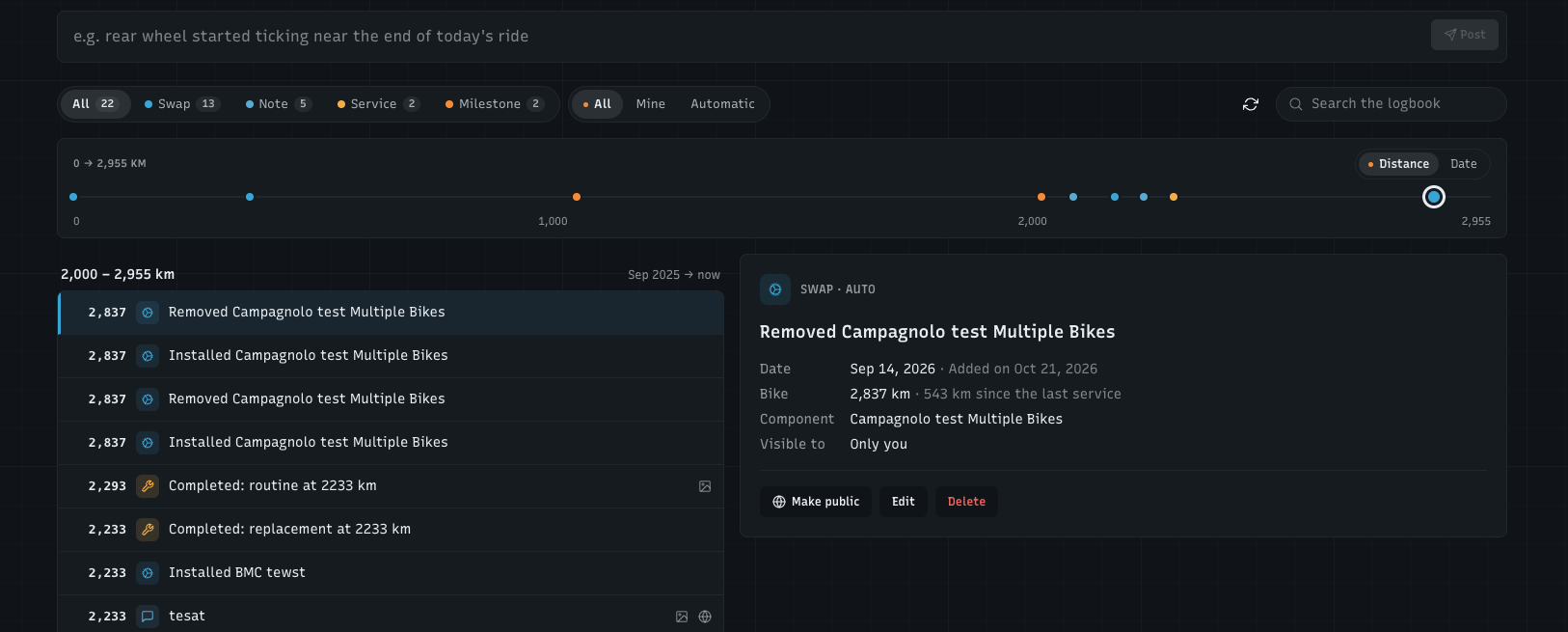
The logbook used to show one big card per entry: about three on a screen, and your own notes got lost between the automatic swaps. It's a list now.
Every entry at the bike's km. Each row starts with how far the bike had gone that day, worked out from your Strava activities, and entries are grouped per 1,000 km (or miles)
A strip of dots above the list shows every entry along the bike's distance. Tap a dot to open that entry. On a computer it stays at the top while you scroll
Distance or Date. The switch in the strip's corner reads the logbook by time instead: grouped per month, every entry with its date
Filters in the same pills as the tabs: one type (Note, Service, Swap, Milestone, with how many of each), Mine for only what you wrote or Automatic for what WatchMy.bike wrote, and Search the logbook
Open an entry to see it beside the list (on a phone it slides up from the bottom): its photos, the bike's km and … since the last service, the linked component or activity, and who can see it. Make public, Edit and Delete are there too
Write a note in one line. Start typing at the top and the date, link, visibility and photos appear under it
Regenerate history is the round arrows button next to the search
How it works: https://watchmy.bike/help/bikes/logbook
Smaller things
Component lists and the bike's Components table show when each component was Added
A retired bike or component says so at the top of every tab, with the date and a Set status button on components
A bike that isn't in your garage (deleted, transferred, or a wrong link) shows Bike not found with a way back, instead of empty tabs
When your plan stops something (a photo, a document, a duplicate's intervals, an extra bike), you see why and how to upgrade, instead of "API Error: 403 Forbidden"
Bike photos follow your plan's limit per bike
The catalogue's cards show the drivetrain, fork and brakes (or motor), filters you set show as chips you can remove, you can sort by Daily mix, Newest first, Oldest first or A–Z, and changing a filter keeps your place on the page
Delete and Regenerate in the logbook ask in the app instead of a browser pop-up
New on the blog
How long does your bike's battery last? Di2, AXS, droppers and power meters: https://watchmy.bike/blog/bike-battery-life-di2-axs-power-meter
Questions or ideas about any of this? Let me know, I read everything.